Automated Scheduling & CLI
VeloSys Pro can run headlessly in the background via command line flags or scheduled Windows tasks.
Command Line Usage
Execute tasks directly from Command Prompt or PowerShell:
.\VeloSysPro.exe --task=quick
.\VeloSysPro.exe --task=full
.\VeloSysPro.exe --task=gaming
.\VeloSysPro.exe --task=revert
When called with --task=<mode>, VeloSys Pro runs headlessly without opening the WebView2 UI, appends logs to %LOCALAPPDATA%\VeloSysPro\logs, and exits with code 0 on success or non-zero on error.
Windows Task Scheduler Integration
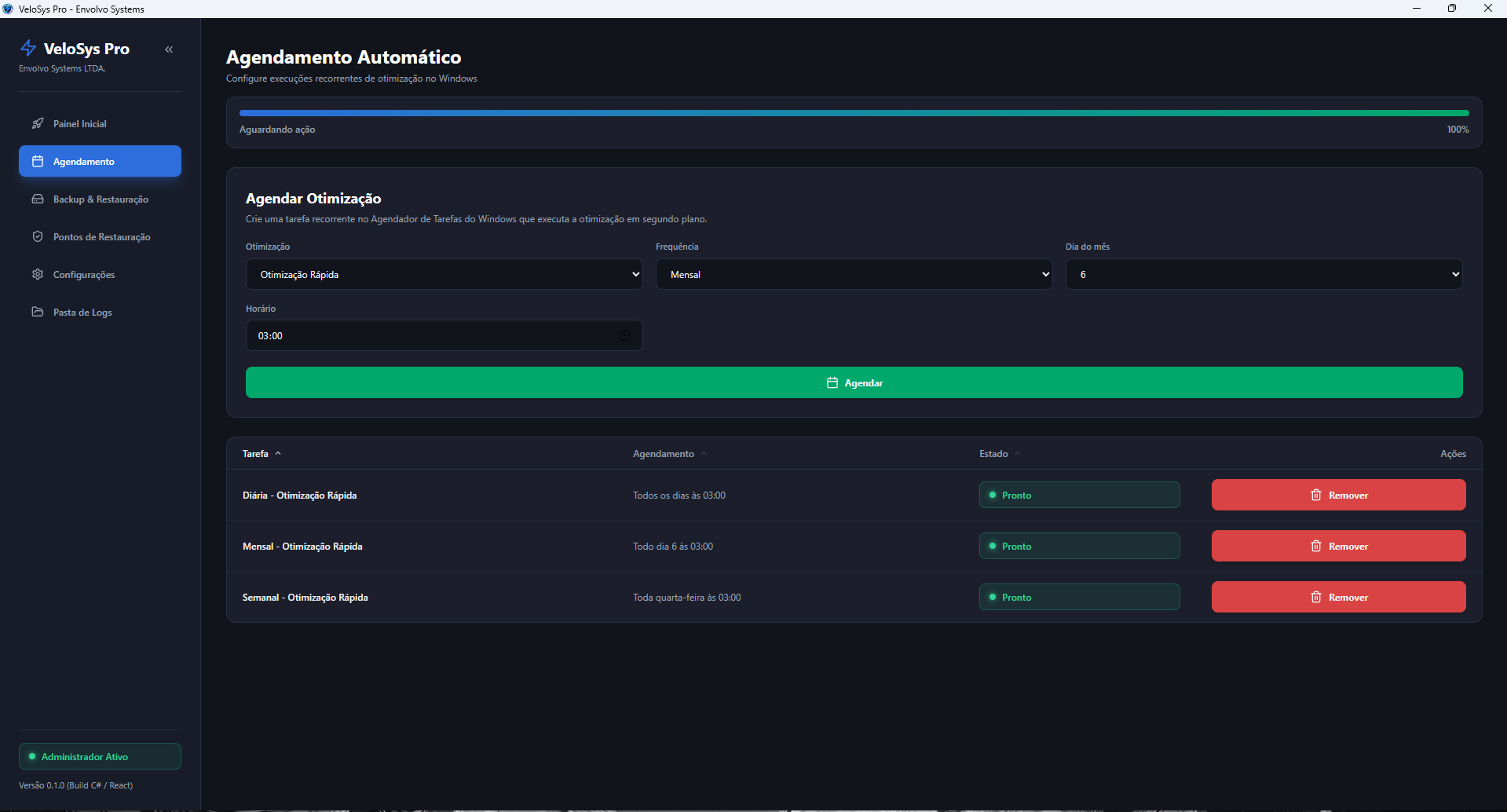
From the Scheduling tab in the UI:
- Pick an optimization, a frequency, and a time. Weekly schedules add a weekday picker and monthly ones a day-of-month picker.
- VeloSys Pro registers native Windows Scheduled Tasks that execute
VeloSysPro.exe --task=...automatically.
Multiple schedules per optimization
Each schedule becomes a separate Windows task, so the same optimization can run more than once — a Quick optimization at 03:00 and another at 05:00 coexist instead of replacing each other.
The task name encodes the whole schedule:
| Task name | Meaning |
|---|---|
VeloSysPro_Quick_Daily_0300 | Quick optimization, every day at 03:00 |
VeloSysPro_Gaming_Weekly_MON_0430 | Gaming mode, every Monday at 04:30 |
VeloSysPro_Full_Monthly_15_0200 | Full optimization, day 15 of every month at 02:00 |
Because the name carries the schedule, the Windows Task Scheduler stays the single source of truth: there is no separate index to fall out of sync. Deleting a task in taskschd.msc removes it from the app's list too, and re-creating an identical schedule overwrites it rather than producing a duplicate.
Scheduled task list
The table shows the friendly name (Daily - Quick Optimization), the concrete cadence (Every day at 03:00), the task state, and a remove action. Columns are sortable and the list paginates at 10 rows.
Tasks created by older versions (named VeloSysPro_Quick, without a schedule suffix) remain listed and removable; their cadence column shows —.